powerGate

With powerGate, you can easily connect Autodesk Vault to ERP, PLM, and cloud services from Autodesk Platform Services.
At its core, powerGate provides easy-to-use PowerShell cmdlets to integrate with any ERP system, as well as your Fusion Manage Tenant (PLM),
Autodesk Construction Cloud, BIM 360, Fusion Team, and other APS endpoints.
This product is designed for companies where the engineering department works with Autodesk tools such as Inventor, AutoCAD, and AutoCAD Mechanical for authoring data, while Vault is used for managing data.
In combination with coolOrange powerJobs, integrations and custom workflows can be implemented to automate data synchronization across these systems.
For example, workflows can be introduced where ERP data, PLM data, or cloud-based information is automatically validated and transferred:
Check the presence of ERP materials and BOMs after lifecycle state changes in Vault
Transfer Vault Items and their BOMs to Autodesk Fusion Manage
Connect to Autodesk Platform Services (APS), for example to exchange data with Autodesk Construction Cloud, BIM 360, or Fusion Team
Features
Pull and Transfer material information
During the design process, it is crucial for the engineer to access material information from the ERP system.
With powerGate, the designer can assign the material number and other relevant information from the ERP right from the beginning to the component he is creating.
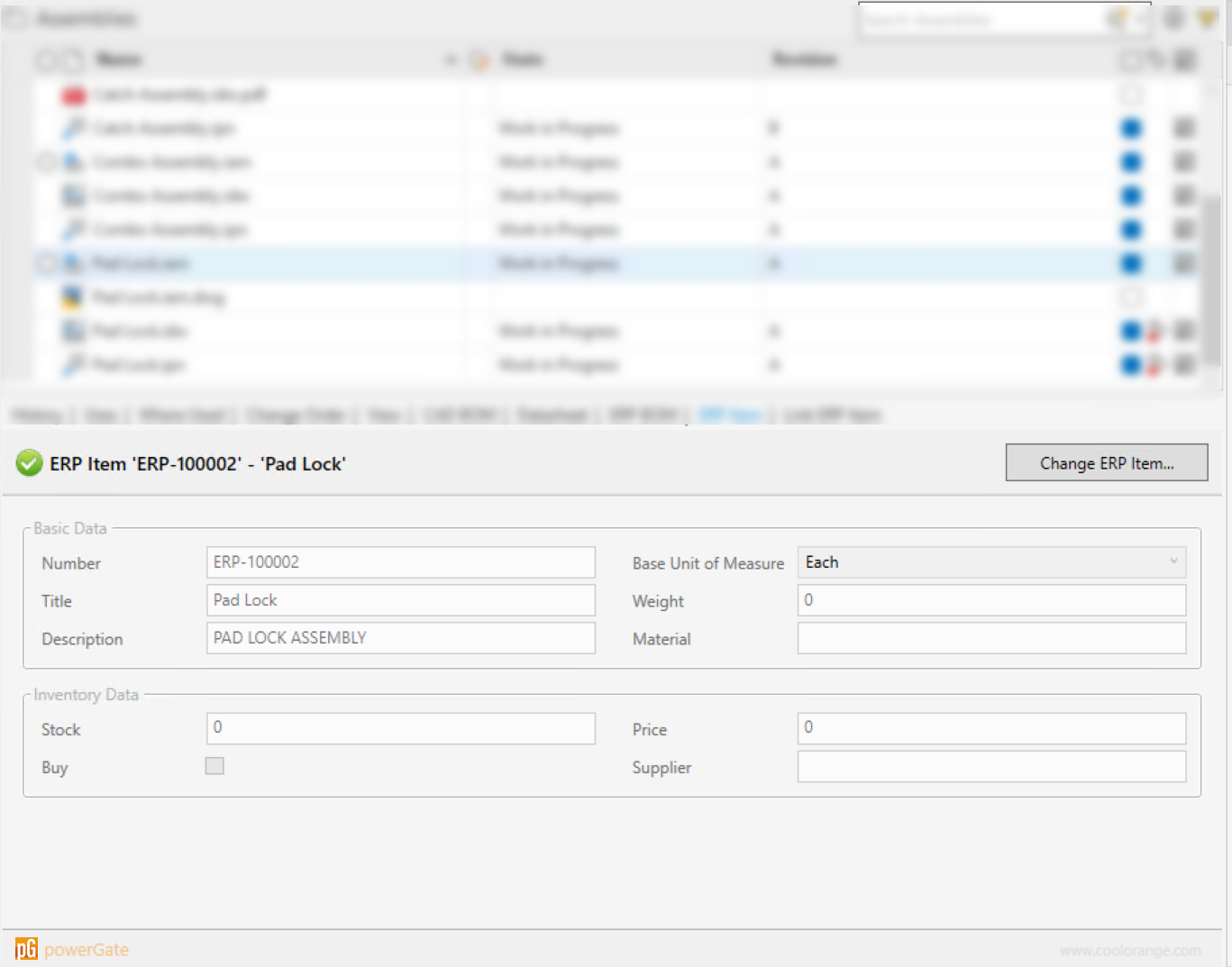
In the Vault Client this ERP data can be viewed, created or modified in specially provided ERP Item tabs:
Pull project information
In order to archive newly created designs in the right project, it is necessary to access this information from the ERP system.
As with material information, powerGate can provide the correct project number.
Transfer BOM to the ERP system
As soon as the design takes shape, a bill of materials (BOM) will be derived from the CAD data, which must later be transferred to the ERP system.
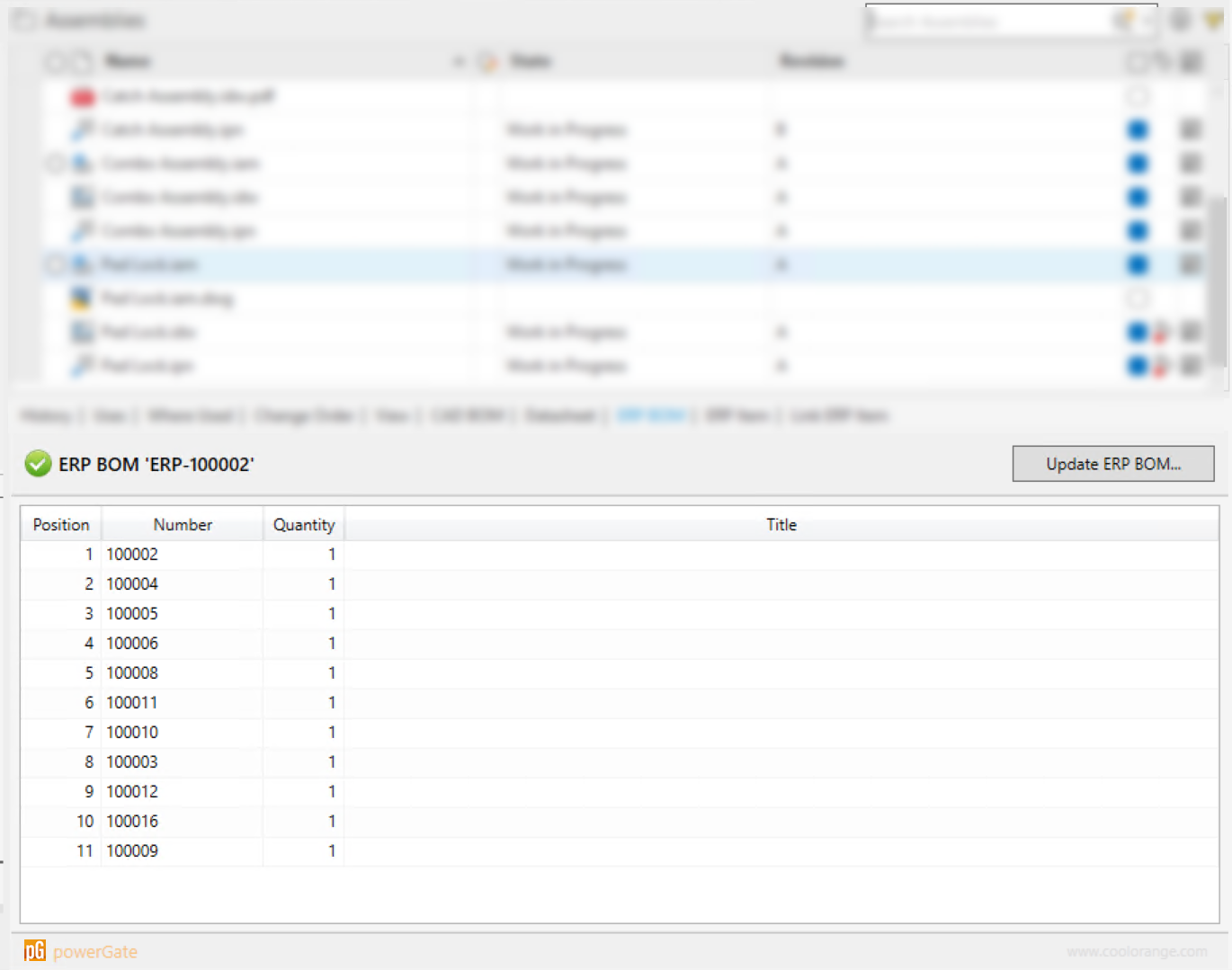
The designer can determine whether a BOM already exists in the ERP system by using the ERP BOM tabs in the Vault Client:
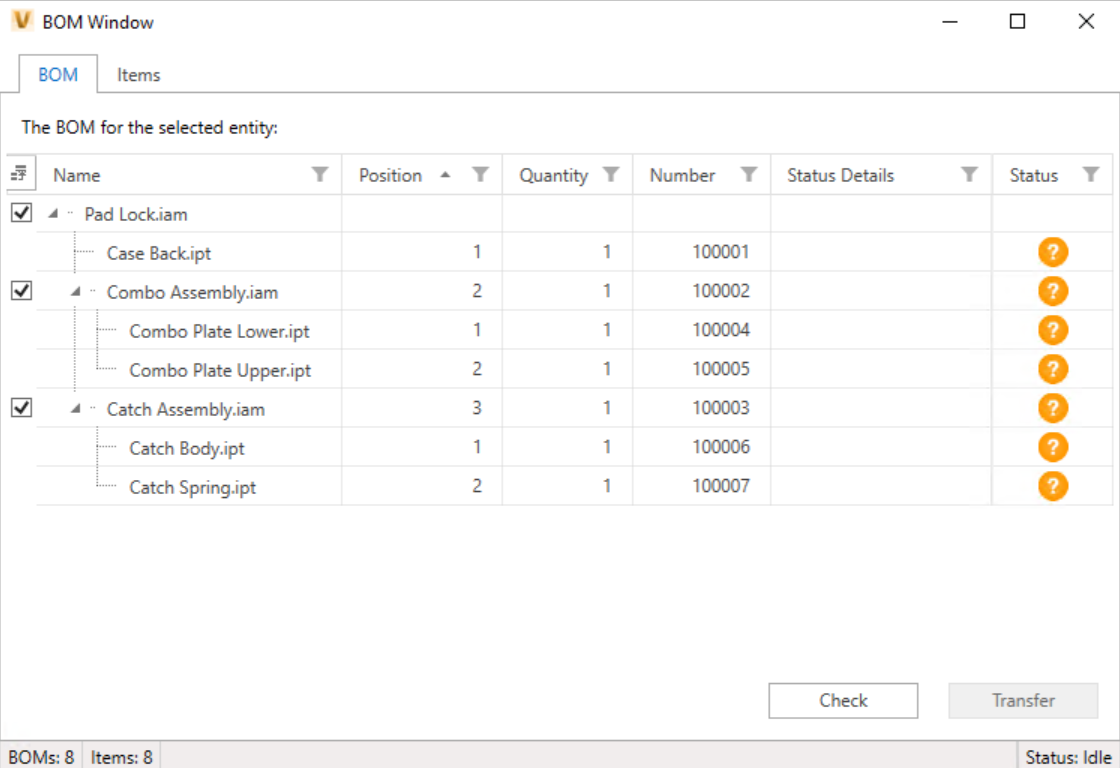
Subsequently powerGate also enables the engineer to complete the CAD BOM within Vault and transfer it manually or automatically back to the ERP system, using the BOM Window: