Configuration in Fusion Manage
Before you continue:
Create and whitelist an Autodesk App so the Job Processor can connect to your Fusion Manage tenant.
Make sure every Vault user who submits jobs has an email address configured that matches a user account in Fusion Manage.
To run workflows successfully with powerPLM, your Fusion Manage workspaces must be configured correctly.
This page describes the required settings:
Security Settings
All Autodesk user accounts that send requests to Fusion Manage must:
Be active in the system
Have the required workspace permissions
Make sure they are added to the correct groups and roles so they have read and write access to all workspaces involved in your workflows.
Autodesk recommends assigning the users to the “Engineering” group, which already contains the necessary permissions for our sample workflows on Github.
In addition, for Autodesk’s default Items workspace it is currently important to also add them to the “Employees” group to grant access to all sections and fields in the Item Details tab (Autodesk plans to simplify this with “Engineering” soon).
For a newly created workspace (such as an installed Items workspace template) you can follow these steps:
In your Autodesk Fusion 360 Manage site, click on Administration → Security
For the respective user, click on the Groups link
Add the user to the “Engineering” group
Press Save
Click on the Roles tab
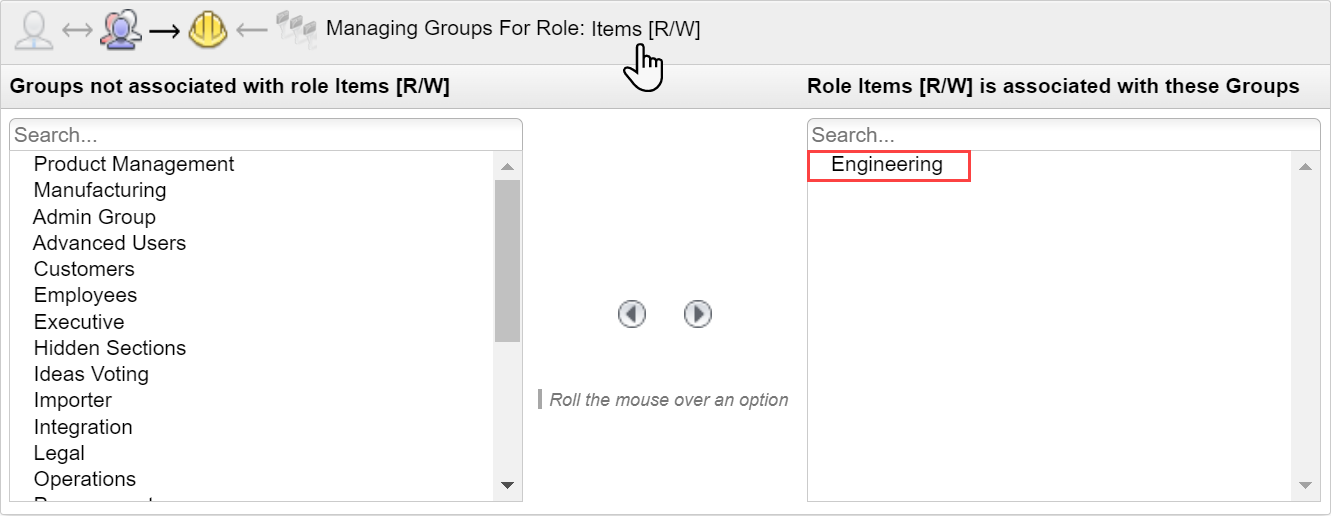
Find the appropriate role for your workspace and click on the Groups link
(for example “Items [R/W]” to allow workflows performing read and write operations in the Items workspace)Associate the role with the “Engineering” group
Press Save
Attachments
The Fusion 360 Manage workspaces must be configured to allow the user to work with items in the Attachments Tab.
To do this, they need the following permissions assigned: View Attachments, Download Attachments, Add Attachments and Edit Attachments.
Required for: Add-FLCAttachment, Save-FLCAttachment and Get-FLCItemAssociations when using the -Attachments parameter.
Bill of Materials
Relationships to workspaces which contain the according BOM line items must be configured for the Bill of Materials Tab:
In your Autodesk Fusion 360 Manage site, click on Administration → Workspace Manager
For the affected workspace, click on Workspace Relationships
Make sure that one or multiple relationships exist for the “Bill of Materials Tab”
Press Save

Additionally the user must have the following permissions in the workspace: View BOM, Add to BOM, Edit BOM and Delete from BOM
Required for: all BOM cmdlets.
Linked Items / Affected Items
The workspaces must be configured to allow relationships to the Affected Items Tab (in non-revisioning workspaces the tab serves as Linked Items tab):
In your Autodesk Fusion 360 Manage site, click on Administration → Workspace Manager
For the affected workspace, click on Workspace Relationships
Make sure that one or multiple relationships exist for the “Managed Items Tab”
Press Save

Additionally the user must have the permission to View Managed Items in the according workspace
Required for: Get-FLCItemAssociations and the Update-FLCItem -AffectedItems parameter.
Workspace Behaviors
When integrating Vault with Fusion 360 Manage, it is important to consider that scripts configured in Fusion 360 Manage also execute when items are automatically created or updated by your Vault integration.
You can check which scripts are enabled – or temporarily disable them in case of problems – by performing the following steps for all workspaces that are used in your workflows:
In your Autodesk Fusion 360 Manage site, click on Administration → Workspace Manager
For all the configured workspaces, click on Behaviors
Verify the settings “Script to run at item creation” and “Script to run when item details are modified”
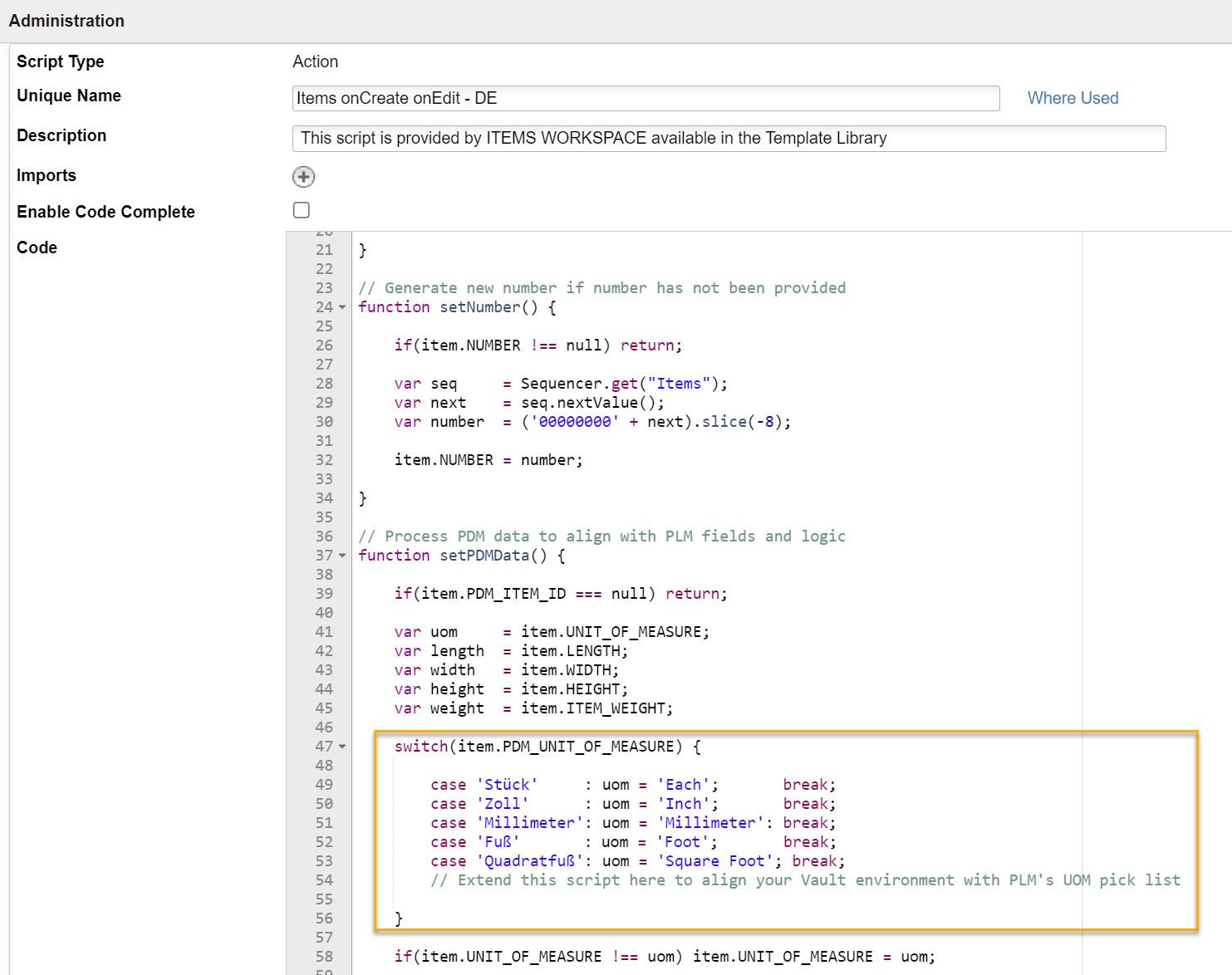
(for example for Autodesk’s default Items workspace the action “Items onCreate onEdit” is required)Navigate to Administration → System Configuration
Click on the Scripting link
Find the configured script and click on the Edit icon to check and adjust its logic