Installation
Requirements
To ensure load projects run performantly, imports to the target Vault are processed directly on the ADMS. Therefore the Vault Server requirements defined by Autodesk are leading.
Operating System: 64-bit only
Microsoft Windows Server 2019
Microsoft Windows Server 2022
Microsoft Windows 10
Microsoft Windows 11
Memory (RAM): Minimum 16 GB, with ~12 GB free memory guaranteed during operation
Recommended
When processing very large BCP packages (>3 GB XML), additional memory headroom is required to ensure performant data processing.
Autodesk Vault Server & Data Transfer Utility: 2026 / 2025 / 2024
Vault Professional
Recommended
It is recommended to install the latest ADMS updates on both the source and target systems.
Starting with the following DTU versions, the /M and /FS options are available:
2024.3
2025.1
2026.0
For large Vault environments, these options significantly improve DTU export and import performance.
Microsoft SQL Server: 2022 / 2019 / 2017 / 2016
Express (installed by default with Vault Server)
Standard
Enterprise
Recommended
For better performance and for handling large BCP packages, upgrading from the default Express edition is required.
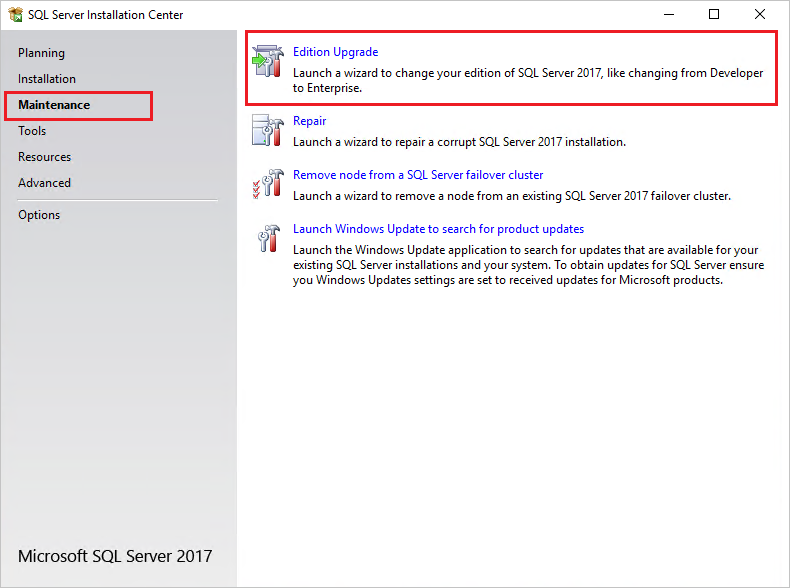
Since load operations—and especially exports—leverage concurrent operations directly on the SQL Server, upgrading to Standard, (Developer) or Enterprise editions allows full utilization of available RAM and avoids database size limitations.You can easily upgrade your edition via the Start menu → Microsoft SQL Server → SQL Server Installation Center:
.NET Framework: 4.8 or higher
Windows PowerShell: PowerShell 5.1 or higher
Setup
The powerLoad setup is delivered as an executable and accepts the standard windows installer arguments documented here.
To accept the products EULA when starting the setup in silent mode pass the ACCEPT_EULA=1 argument.
Install locations
powerLoad is installed in the following locations on your system:
All program libraries are placed in C:\Program Files\coolOrange\Modules\powerLoad
Following shared library is installed in GAC:
bcpDevKit.dll
Following shortcuts are added in the start menu:
powerLoad Console - Opens the PowerShell Console and loads the powerLoad module
powerLoad Logs - Opens the log file location
powerLoad Information - Opens the About dialog with product related information
coolOrange License Manager - Opens the License Manager dialog for activating coolOrange products
Windows permissions
To activate the product via the License Manager dialog, the current Windows user needs the following rights, which are automatically installed for “Everyone”:
Path |
Required Rights |
|---|---|
C:\ProgramData\coolOrange\ |
Read, Write data |
Updates
To install a newer version of powerLoad execute the setup file of the new version. This will automatically update the files in the existing installation.
Uninstall
In case you want to remove powerLoad from your computer you can:
Execute the setup file again. This will give you the option to repair or remove powerLoad. Click on “Remove” to uninstall the program.
Go to “Control Panel - Programs and Features”, find “coolOrange powerLoad” and run “Uninstall”.